
A fresh Fedora install is clean and solid, but it leaves out a few things most people want straight away: full video and audio codecs, drivers for NVIDIA cards, and some everyday apps. These are the steps I take after installing, in the order I take them, taken from my own command history across two Fedora installs.
Every command runs in a terminal. Anything starting with sudo asks for your password.
These steps work on Fedora Workstation, the KDE Plasma edition and the spins.
1. Update everything first
The install image is built weeks or months before you use it, so the first update is a big one. On my last install it was over 1,600 packages.
sudo dnf update --refresh--refresh makes dnf fetch the latest package lists before it starts. Reboot afterwards if the kernel was updated, so you’re running the new one before installing any drivers.
2. Add RPM Fusion
Fedora only ships fully open-source software in its own repos. RPM Fusion is the long-standing community repo for the rest: full codecs, NVIDIA drivers and Steam. It comes in two parts, free (open source, but left out of Fedora for legal reasons) and nonfree (closed source). Add both:
sudo dnf install https://mirrors.rpmfusion.org/free/fedora/rpmfusion-free-release-$(rpm -E %fedora).noarch.rpm https://mirrors.rpmfusion.org/nonfree/fedora/rpmfusion-nonfree-release-$(rpm -E %fedora).noarch.rpm$(rpm -E %fedora) fills in your Fedora version number, so the same command works on any release.
If you want to play DVDs, there’s also a tainted repo for libdvdcss:
sudo dnf install rpmfusion-free-release-taintedsudo dnf install libdvdcssA word on repos. Every repo you add can install and update software on your system with full admin rights. RPM Fusion has been trusted by Fedora users for many years, but be choosy about anything else: stick to well-known projects and the companies behind the software itself. Now and then, check what you’ve got:
dnf repolist3. Multimedia codecs
Fedora’s own ffmpeg-free leaves out several common video and audio formats. Swap it for RPM Fusion’s full version:
sudo dnf swap ffmpeg-free ffmpeg --allowerasing--allowerasing lets dnf remove the old package so the new one can replace it.
Then bring the rest of the multimedia packages in line, and add the sound and video group:
sudo dnf update @multimedia --setopt="install_weak_deps=False" --exclude=PackageKit-gstreamer-pluginsudo dnf group install sound-and-videoAfter this, most videos and music should just play.
4. NVIDIA driver (NVIDIA cards only)
Skip this if your graphics are AMD or Intel: Fedora’s built-in drivers already handle those well. For NVIDIA, install the driver from RPM Fusion:
sudo dnf install akmod-nvidia xorg-x11-drv-nvidia-cudaakmod-nvidiabuilds the driver to match your kernel, and rebuilds it by itself every time a new kernel arrives.xorg-x11-drv-nvidia-cudaadds CUDA support, which some apps and video tools use.
Wait before rebooting. The first build takes a few minutes in the background. Check it’s finished:
modinfo -F version nvidiaWhen this prints a version number (for example 615.78.08) instead of an error, the driver is built and it’s safe to reboot.
Secure Boot: if Secure Boot is turned on in your firmware, the driver won’t load until it’s signed with a key your PC trusts. RPM Fusion has a page explaining how to set that up; follow it before rebooting.
5. Everyday apps
A few I install straight away:
- VLC plays almost any video or audio file.
- Steam is a games store and launcher, and runs many Windows games on Linux too. It comes from RPM Fusion’s nonfree repo, which is one reason to add it in step 2.
- Chromium is the open-source base of Chrome, straight from Fedora’s repos. Handy as a second browser for sites that don’t behave in Firefox.
- unzip and 7zip open
.zipand.7zarchives. Fedora Workstation already includes both, but other spins may not. If they’re already there, dnf just says so and carries on.
Take out any you don’t need before running the command. For example, you wouldn’t install Steam in a virtual machine.
sudo dnf install vlc steam chromium unzip 7zip6. Command-line tools
If you spend time in the terminal, these are worth having from day one:
| Tool | What it’s for |
|---|---|
| btop, htop | See what’s using your CPU and memory |
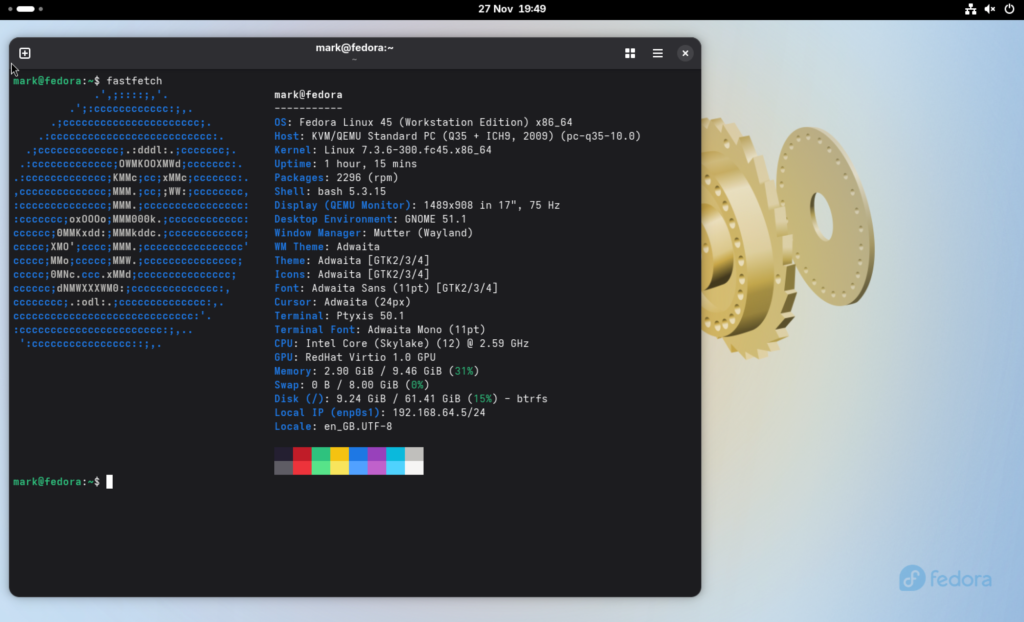
| fastfetch | A quick summary of your system: version, kernel, hardware |
| vim, neovim | Text editors that work anywhere, including over SSH |
| git | Version control, for keeping config files and scripts safe |
| gh | GitHub’s own command-line tool |
| tmux | Keeps terminal sessions running after you disconnect, and splits one terminal into several panes |
Again, leave out any you don’t need:
sudo dnf install btop htop fastfetch vim neovim git gh tmuxIf you upgraded from Fedora 44 instead
I upgraded my desktop rather than reinstalling, and almost everything above carried over: RPM Fusion, the codecs and my apps were all still there afterwards. The upgrade itself is three commands.
Get fully up to date on 44 first:
sudo dnf upgrade --refreshDownload Fedora 45 (this can take a while):
sudo dnf system-upgrade download --releasever=45Then reboot into the upgrade, which installs it and restarts again:
sudo dnf system-upgrade rebootNVIDIA users: the new release comes with a new kernel, so akmods builds the driver again on the first boot. Give it a few minutes and check with modinfo -F version nvidia, as in step 4. On my desktop the new driver was in place about 13 minutes after the upgrade began.
Wrapping up
That’s the base I start from on every Fedora machine: updated, codecs working, the right drivers, and the tools I use every day. Everything after this is personal taste (desktop, themes, how you like your terminal), and I’ll cover my own setup in a separate post.
If something here didn’t work for you, or you do something differently, let me know.